Media endpoints let you save pictures and recording files from visual support sessions. SightCall supports email, HTTPS, Amazon S3 buckets, SFTP, Microsoft Azure, and Google Drive media endpoints.
This article explains how to set up a secure FTP site (SFTP) as a media endpoint for pictures, recording files, and recording audio transcripts. You can configure authentication for the SFTP site using an SSH key or credentials.
Requirements
To configure SFTP as a media endpoint, you will need:
- Access to the admin portal (admin.sightcall.com)
- SFTP site address
- One of these:
- SFTP credentials, including hostname, port, login, and password OR
- SSH private key and the corresponding public key installed on the SFTP site
Using SSH keys with the SFTP media endpoint
You can use SSH keys to establish a secure connection to an SFTP site. In this case, the SightCall platform plays the role of the SFTP client. You need to use your private key to upload files to the SFTP server, which has the corresponding public key. The private key is encrypted.
SSH key pairs
When you configure SSH for a SFTP media endpoint, SightCall establishes a secure connection when the private SSH key matches the public SSH key on the SFTP server. SightCall does not provide SSH keys.
You can create a private and public SSH key pair using the OpenSSH ssh-keygen command-line tool or PuTTYgen, which is available for Windows, Linux, and macOS. The private key will be used in the SSH Key field in the media endpoint configuration. The corresponding public key needs to be installed on your SFTP server.
Any key pair used for the media endpoint should use RSA and no passphrase. By default, ssh-keygen uses 3072-bit length.
Example ssh-keygen command:
ssh-keygen -t rsa
where:
- -t specificies the type (RSA) of key
For additional information, refer to:
- How to use ssh-keygen to generate a new SSH key (SSH.com)
- PuTTYgen Download Guide for Windows, Linux and Mac (puttygen.net)
Creating the media endpoint with SSH
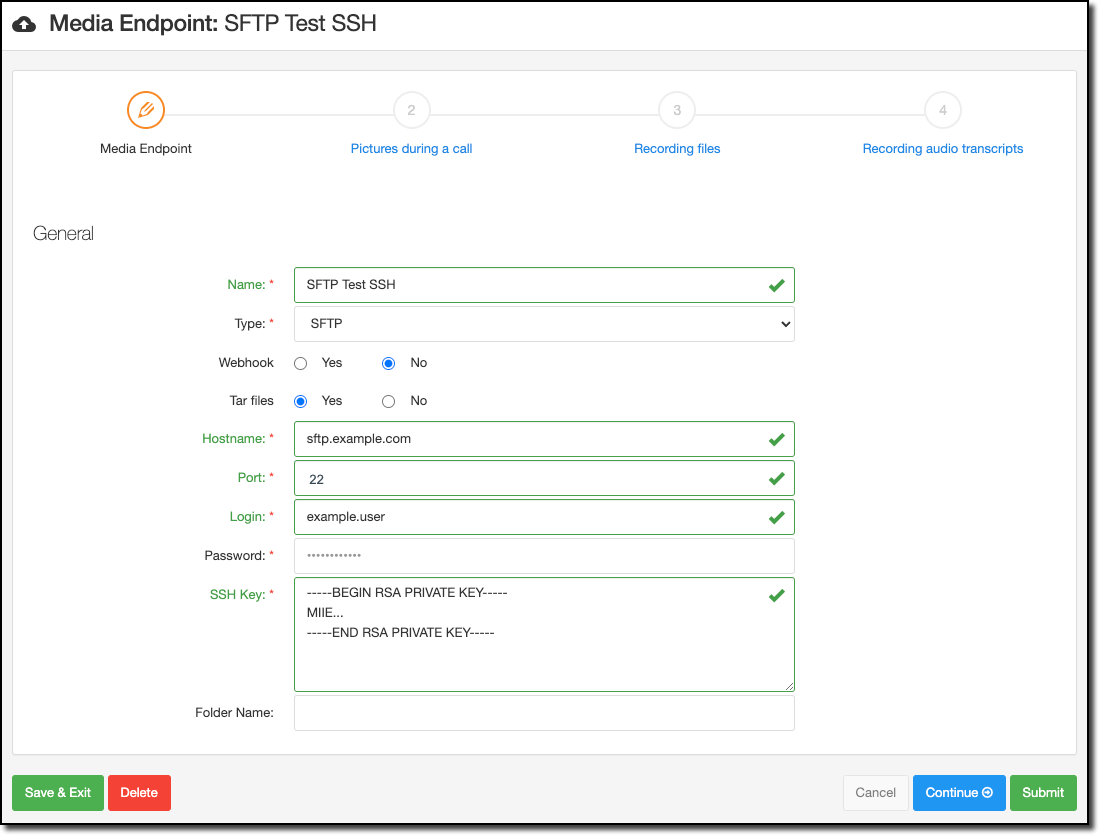
To create the SFTP media endpoint using an SSH key:
- Sign on to the admin portal and view media endpoints: https://admin.sightcall.com/media-endpoints/
- Select Add End-Point to create a new media endpoint.
- Enter a name and select SFTP from the Type drop-down box.
- Optional: Select Yes or No for using Webhook (adds extra configuration options).
- Optional: Select Yes or No for using Tar
- Enter the site’s Hostname.
- Enter the Port to use to connect to the site.
- Enter the Login for the SFTP site. Leave Password blank.
- Enter the private SSH Key, for example:
-----BEGIN RSA PRIVATE KEY-----
MIE..
-----END RSA PRIVATE KEY----- - Optional: Enter a folder name where images should be saved on the SFTP site.
- Select Submit to save the configuration.
After you save the media endpoint, the key file is encrypted and no longer visible.
Using credentials with the SFTP media endpoint
You can also sign on to an SFTP site using a username and password.
To create the SFTP media endpoint using a username and password:
- Sign on to the admin portal and view media endpoints: https://admin.sightcall.com/media-endpoints/
- Select Add End-Point to create a new media endpoint.
- Enter a name and select SFTP from the Type drop-down box.
- Optional: Select Yes or No for using Webhook (adds extra configuration options).
- Optional: Select Yes or No for using Tar
- Enter the site’s Hostname.
- Enter the Port to use to connect to the site.
- Enter the Login (username).
- Enter the Password. Leave the SSH Key field blank.
- Optional: Enter a folder name where images should be saved on the SFTP site.
- Select Submit to save the configuration.
Next steps
Once the media endpoint is created, you can assign the media endpoint to specific use cases by using the tabs across the top of the Media Endpoint pages or in each use case when configuring features that use a media endpoint.