Requirements
To create a media endpoint, you must:
- Determine the media endpoint type you wish to use
- Know the authentication method used
- Have the authentication information required
Endpoint types
| Type | Used for | Authentication methods | Notes |
| Pictures only | No authentication method required | Can be used to send email to a specific email address (typically the agent) | |
| HTTPs | Pictures only | No authentication method required | Files are uploaded using a POST request |
| S3 Bucket | Pictures, Recording files | Key and Secret | Sent to an Amazon S3 bucket |
| SFTP | Pictures, Recording files | Hostname, port, login, and password | Sent to a secure FTP site |
| Azure | Pictures, Recording files | Access Key or Shared Access Signature | Sent to a Microsoft Azure blob storage to a container you specify |
| Google Drive | Pictures, Recording files | Service Account Key | Sent to a Google Drive folder you specify |
Tar files and webhooks
Files can be compressed into TAR files and then sent to the media endpoint. Compression reduces overall file size, which lowers the amount of data used to transfer files.
Webhooks let you define integrations into other services, such as Salesforce. For example, whenever a webhook is activated any time a file is stored to the media endpoint. You can store the media on an S3 bucket and then send the link or URL to that asset back to your CRM using a webhook so you can link directly to it from the CRM.
Creating a media endpoint
To create a media endpoint, you need to select an endpoint type and then select the use cases for that endpoint type.
- Login to the admin portal and select the tab Media endpoints.
- Click on Add End Point.

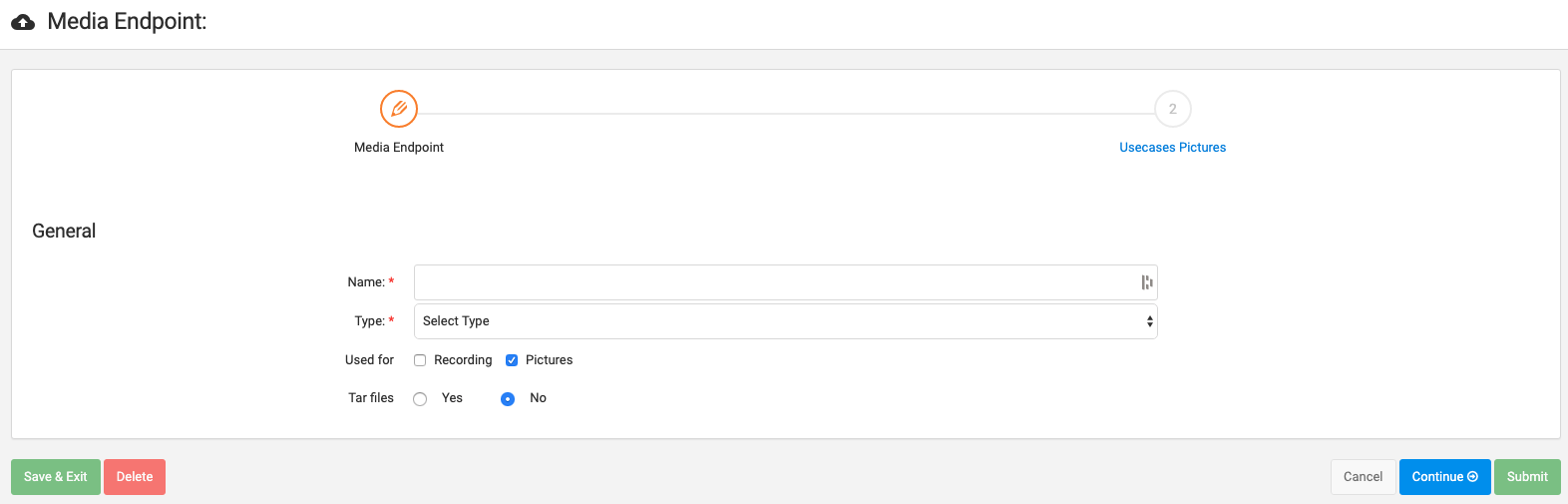
- Enter a name for the endpoint.
- Choose the storage from the Type drop-down.
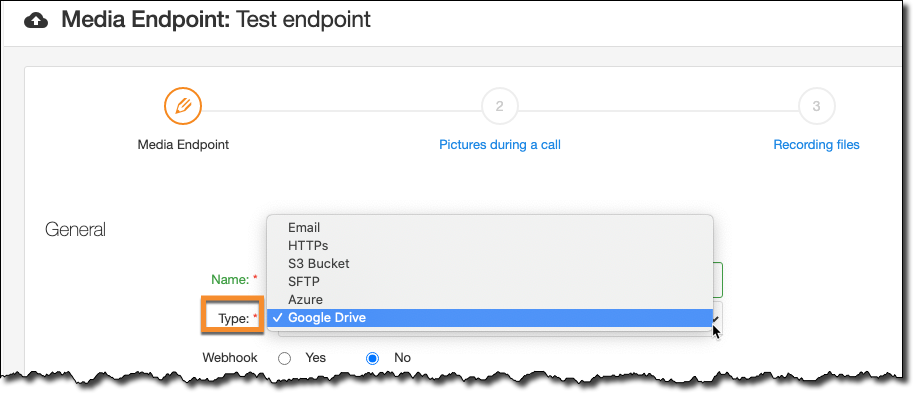
- After you select the storage type, authentication information appears below. Fill in the appropriate information.
- (Optional) Select whether you would like the media to be uploaded in compressed tar files instead of the native media format (jpg, png, mp4, etc.).
- (Optional) Assign the media endpoint to use cases by using Pictures during a Call or Recording Files tabs. Note that this can also be performed via the use case configuration.
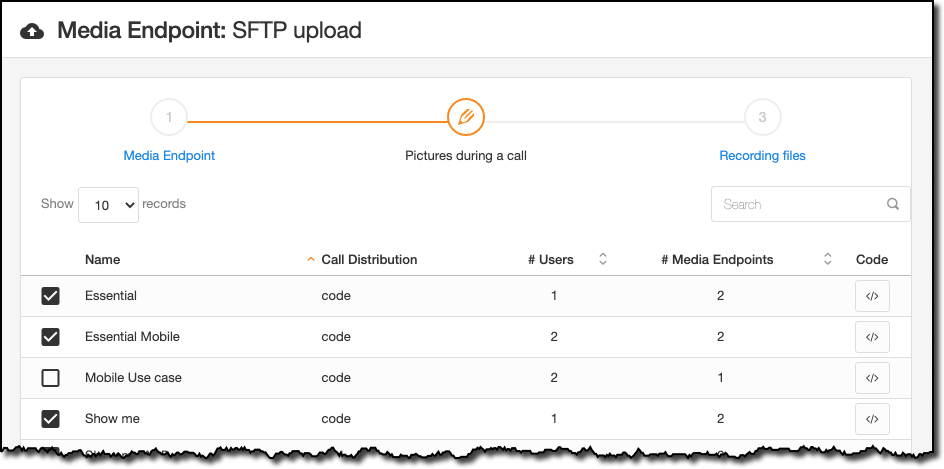
- Submit the changes. Note that our platform performs a test when submitting a new media endpoint, so make sure the appropriate permissions are set in order for the media endpoint to be saved properly.
Associating a media endpoint with a use case
To use a media endpoint, that endpoint has to be associated with one or more use cases. There are two ways to associate an endpoint with a use case:
- Checking one or more use cases from the Pictures during a call or Recording files tabs of the media endpoint configuration screens
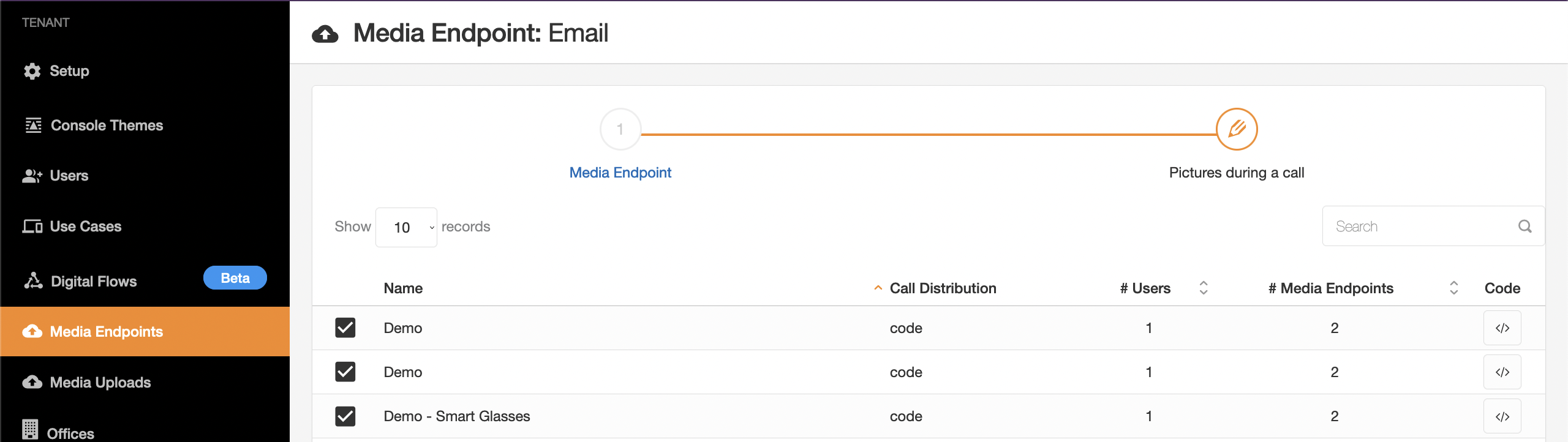
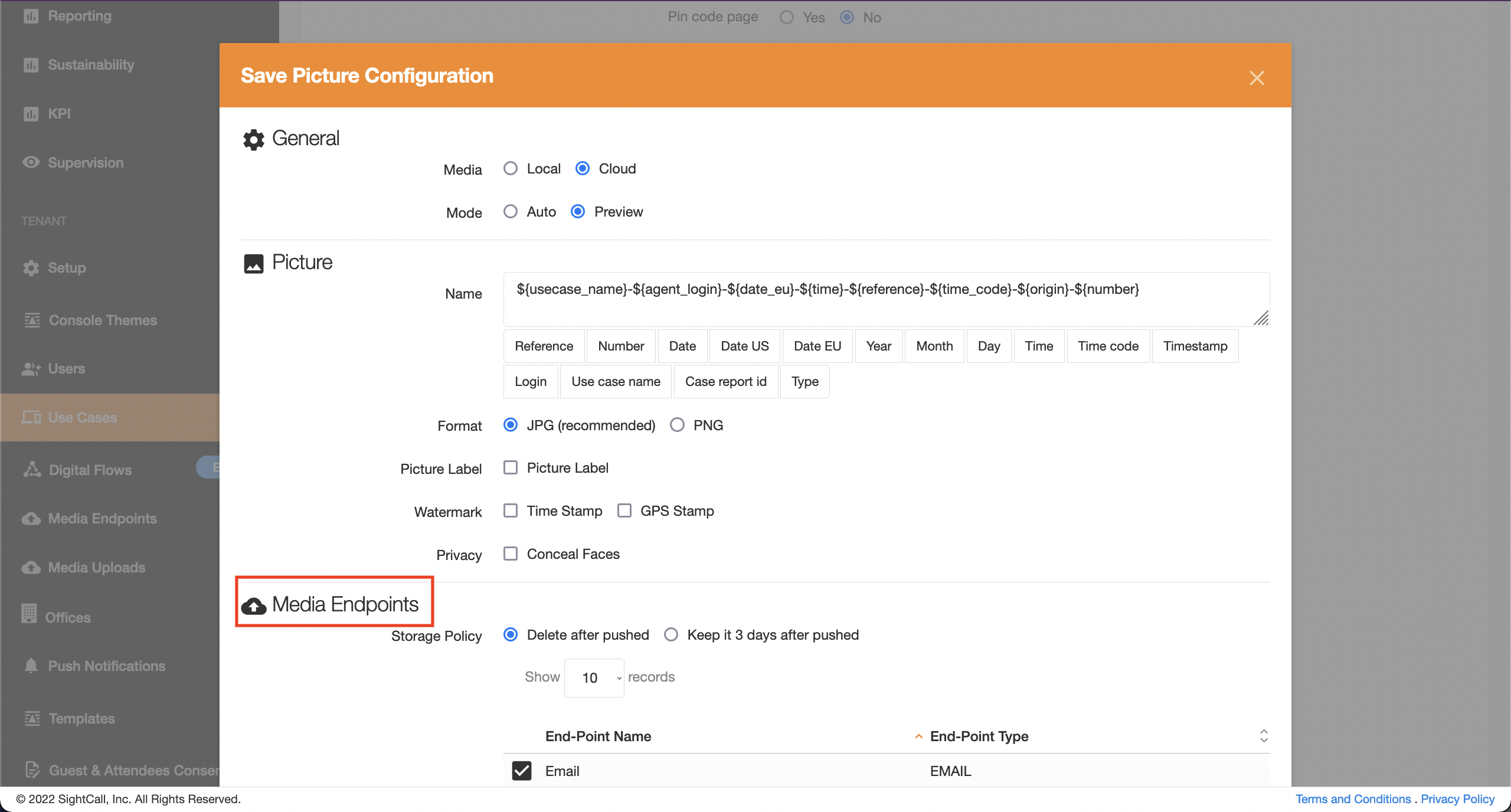
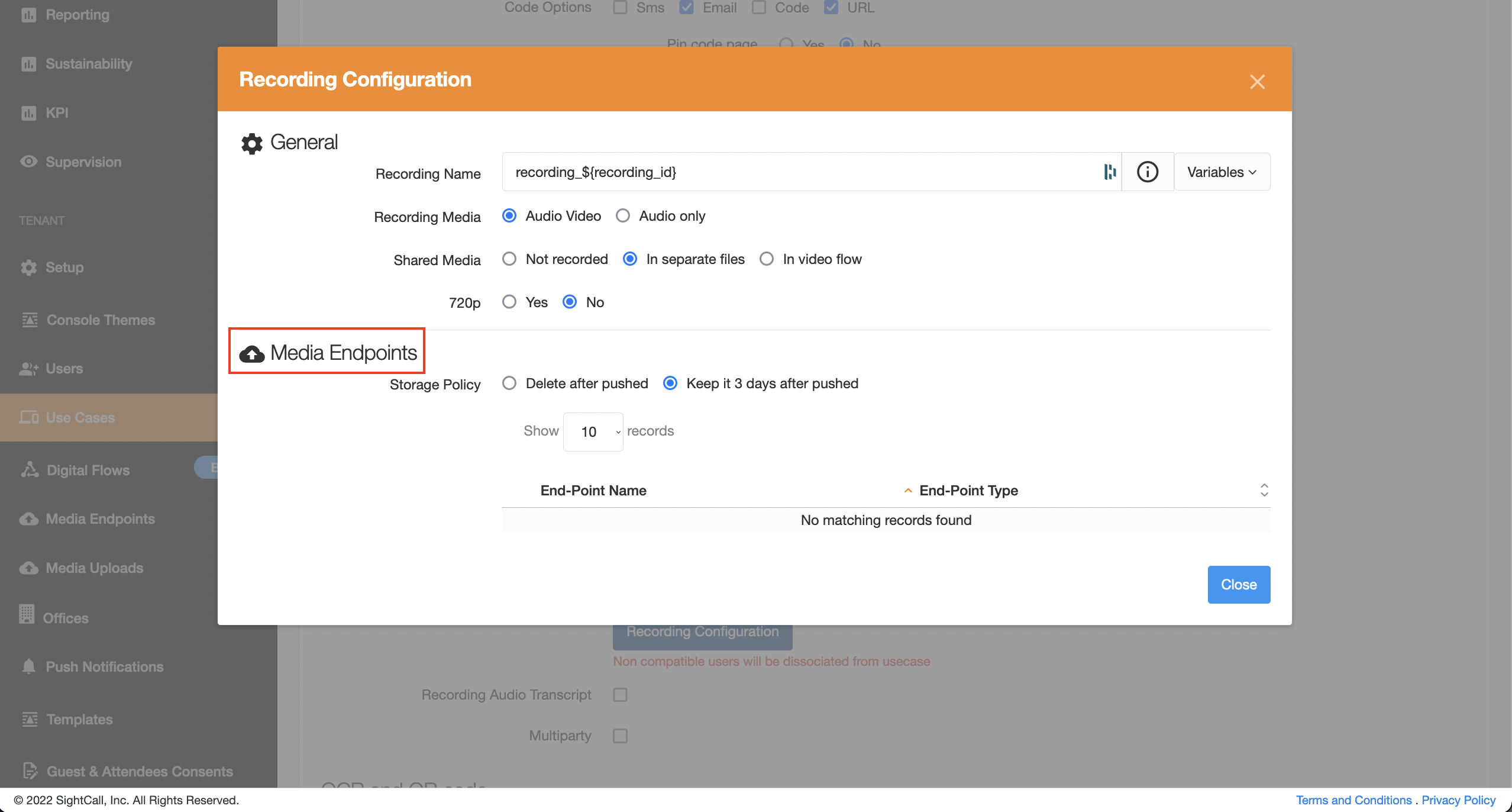
- Selecting a media endpoint when using the options: Save Picture Configuration and Recording Configuration